
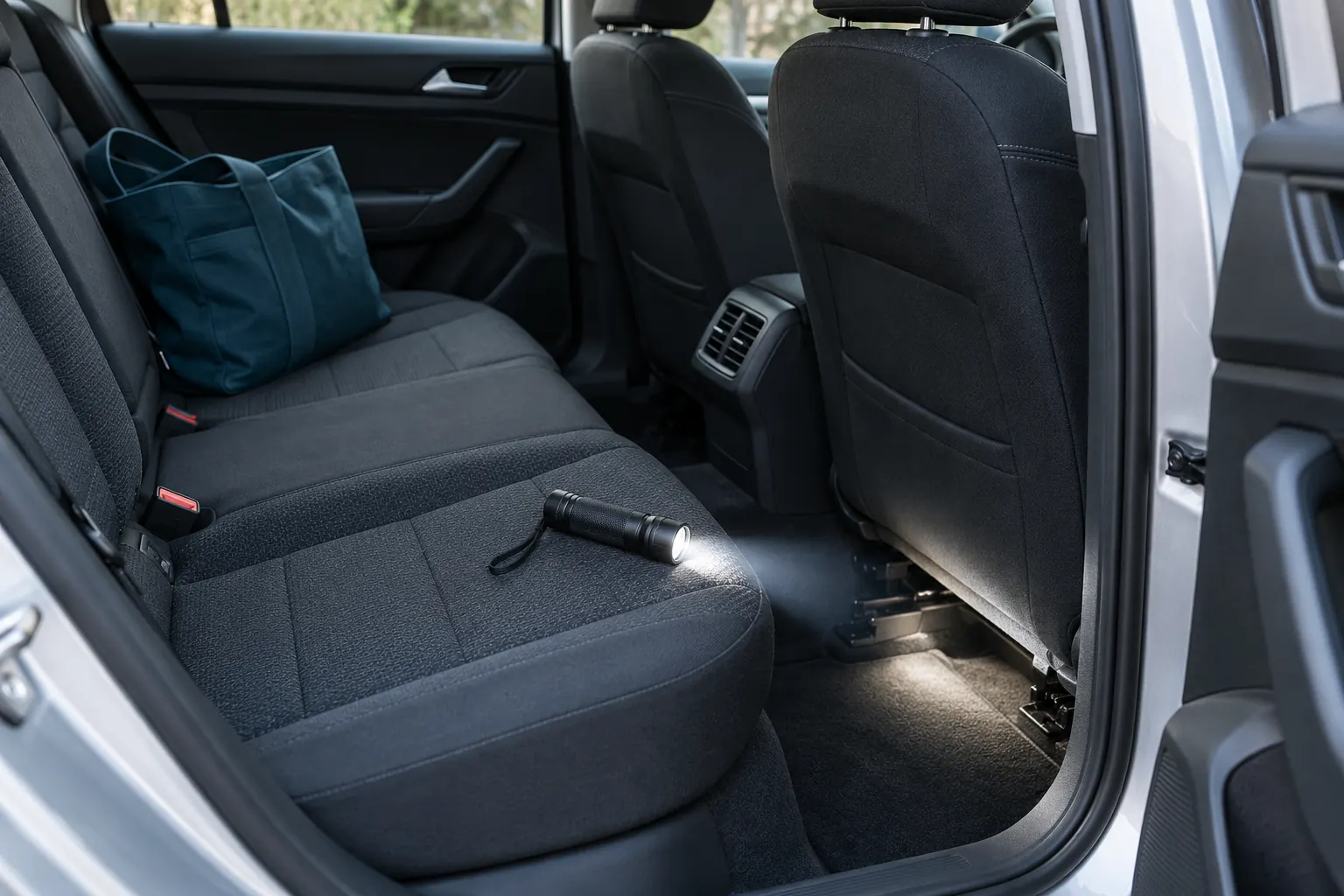
To find a tracker on your car, open any tracker alert your phone has shown, run a Bluetooth scan inside and around the car, then check the seats, trunk, wheel arches and the OBD-II port by hand. A phone can pick up Bluetooth item trackers such as AirTags. GPS trackers that report over a cellular connection usually send no Bluetooth signal, so the hands-on check matters as much as the scan.
The steps below help you gather context without treating every unknown accessory as evidence of tracking.
1. Start with your phone’s tracker alerts
If your iPhone or Android phone has already displayed an unwanted-tracking alert, open it and follow the instructions provided by your phone. An alert can include information about the detected device and options to help find it.
Apple explains how to review an alert and, when available, use sound or nearby-finding features in its unwanted-tracking guidance. Android provides unknown tracker alerts and a manual scan; the available options are described in Google’s unknown tracker guide. Keep these built-in features enabled.
2. Run a nearby Bluetooth scan
Park before checking your phone. Enable Bluetooth and grant the scanning permissions the app requests. Open Tracker Detect and start a scan inside the car, then another standing beside it. The app looks for nearby Bluetooth Low Energy advertisements and highlights devices that may need attention.
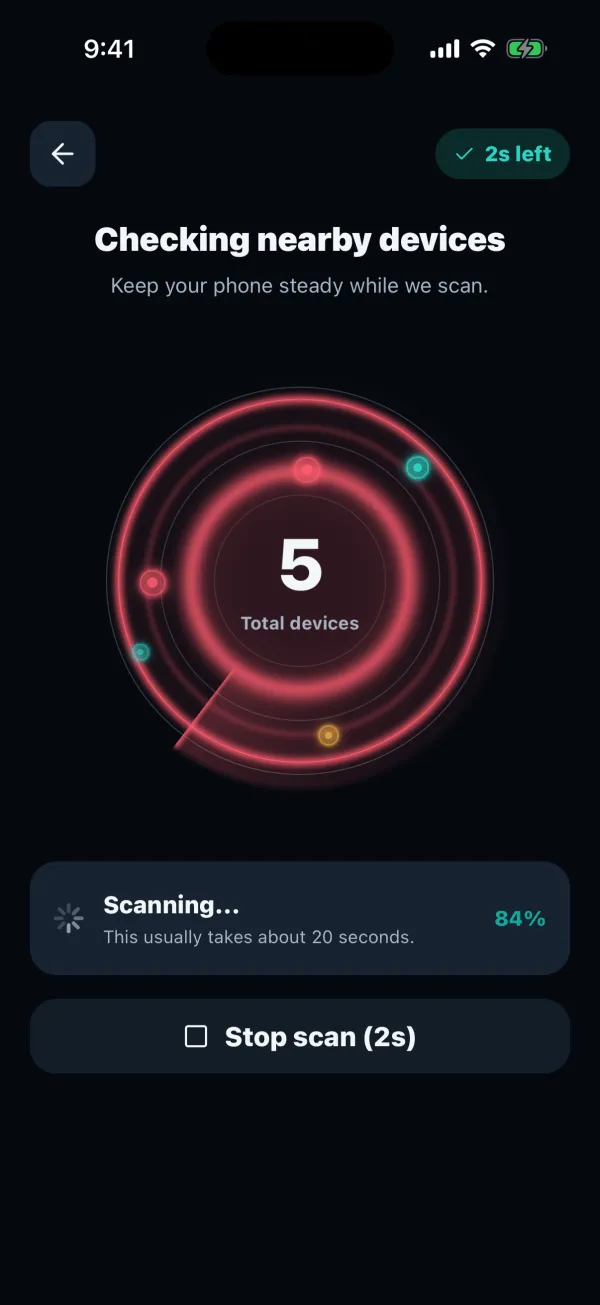
A scan may also show your own accessories or devices belonging to people nearby. The name of a device and a strong signal are not enough to establish who owns it, where it is attached or why it is there.
3. Review unfamiliar devices in context
Look at the information available for an unfamiliar device. Compare saved observations and mark accessories you recognize as known. This helps you focus your review without treating familiar devices as new concerns each time.
Repeated detections can be useful context, especially when an unknown device has been observed in more than one saved place. They do not establish intent or prove a device’s route. Signal conditions and device behavior can change between observations.
4. Investigate a detectable nearby signal
Premium Live Locate in Tracker Detect uses changes in Bluetooth signal strength to estimate proximity. Move slowly around the accessible area and watch whether the signal improves or weakens. Metal bodywork, walls and interference can affect the reading.
This is signal guidance, not an exact distance or a directional arrow to a hidden device. For a tracker identified by a built-in system alert, use the locating instructions in that alert. If you find an unfamiliar item, consult the manufacturer’s guidance for identification and next steps.
5. Know what a phone scan can miss
A Bluetooth scanner is one part of checking your surroundings. It is not a GPS-tracker detector, a hidden-camera detector or a phone-spyware scanner.
| Device or signal | What to expect |
|---|---|
| Nearby BLE device | May appear when it broadcasts a detectable signal. |
| AirTag or another item tracker | Detection and identification depend on its state, signal and platform restrictions. |
| GPS-only tracker | Cannot be found through a Bluetooth-only scan. |
| Device that is off or silent | May not appear, even if it is physically nearby. |
An empty scan means no qualifying signal was detected in those conditions. It does not certify that a car or space is free of trackers.
How to find an AirTag in your car
If your phone has identified an AirTag, start with that alert. On iPhone, use Play Sound or Find Nearby when offered. On Android, use the system’s unknown tracker alert and available finding options. Our iPhone and Android alert guide explains where to start, and the hidden AirTag guide lists the spots worth checking in a car.
If an item cannot be heard, check accessible belongings and the vehicle area the signal suggests. A Bluetooth scan may add context, but it cannot guarantee identification of every AirTag. Do not mistake one strong reading for confirmation that the item is attached to your car.
How to find a GPS tracker on your car
GPS trackers report their location over a cellular connection, so most of them never broadcast a Bluetooth signal and won’t appear in any phone scan. Finding one means looking. These are the usual places:
- The OBD-II port under the dashboard, near the steering column. Plug-in trackers sit here because the port supplies power.
- Under the bumpers and inside the wheel arches, where magnetic cases can attach to bare metal.
- Under the seats, in the trunk and in the spare-wheel well, for battery-powered units.
- Behind the dashboard or near the battery, for trackers wired into the car’s power. Leave these to a mechanic.
Use a flashlight and look without taking anything apart. Hard-wired trackers often sit behind trim panels, and pulling at wiring can damage the car. If you suspect one, an auto electrician or mechanic can inspect the car safely.
How to tell if your car has a tracker
A phone scan alone cannot answer that with certainty. While safely parked, look through bags, coat pockets, storage compartments and other accessible spaces. Separate your own accessories from anything unfamiliar. Use a flashlight where it helps; do not dismantle trim, touch unfamiliar wiring or get underneath an unsupported vehicle.
If you find an unfamiliar device, note where it was and preserve its identifying details. If you suspect a device beyond what you can inspect safely, get help from a qualified professional. A clean Bluetooth result cannot rule out a silent device or a cellular GPS tracker.
For help interpreting an app result before you search, read how to make sense of a Bluetooth scan.
Car tracker questions
Should I remove a tracker I find on my car?
If you’re worried about your safety, not straight away. Photograph it where it is, note the time and place, and contact the police first, because removing it can alert whoever placed it and lose evidence. For an AirTag or another item tracker, the alert on your phone or the manufacturer explains how to disable it once you have a record.
Can a mechanic check my car for a tracker?
Yes. A mechanic or auto electrician can look behind trim, around the OBD-II port and along the wiring for devices that draw power from the car, which is where hard-wired GPS trackers usually sit. Some private investigators also offer vehicle sweeps with radio-frequency detectors.
Choose a detector with clear limits
Tracker Detect by FTW-Labs is a Bluetooth tracker detector for iPhone and Android. It supports nearby scanning, local scan history and known-device management. Premium adds tools including Live Locate, additional evidence and background alerts, subject to operating-system and battery restrictions.


An independent app by FTW-Labs. Listed as Tracker Detect: Device Finder on the App Store and Nearby Scan: Tracker Detector on Google Play. Separate from Apple’s Tracker Detect.